Set up Trilbio and get the most out of it.
From installing to answering your first prompt from the menu bar, plus what every part of the panel means.
Requirements
- A Mac with macOS 26 (Tahoe) or later
- Claude Code installed and used at least once, so the Claude folder exists
- For limits: a recent Claude Code version that passes usage limits to the status line
Set up in two minutes
Install Trilbio
Download Trilbio from the Mac App Store and open it. It has no Dock icon: it lives in your menu bar as a small agent with a hat.
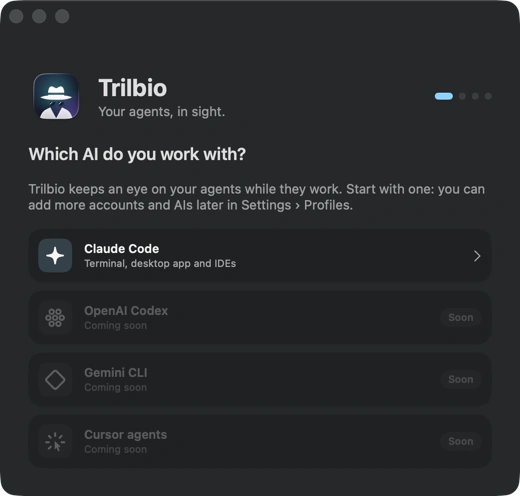
Choose your AI
Onboarding asks which AI you work with. Pick Claude Code. Codex, Gemini CLI and Cursor are shown as coming soon.
Give access to your Claude folder
macOS asks you to pick your Claude folder, usually
~/.claudein your home folder. This is the only folder Trilbio can read.Connect Claude Code
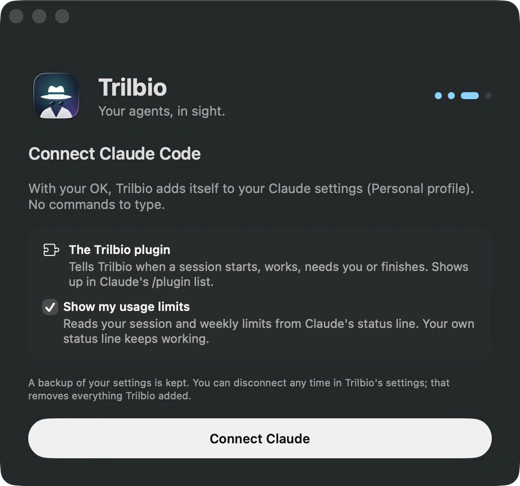
Click Connect. Trilbio adds its plugin to Claude Code's settings so sessions report to Trilbio. Tick the box for limits if you want your 5-hour and weekly usage in the panel. Claude Code picks the plugin up by itself; new sessions report right away.
Find Trilbio in the menu bar
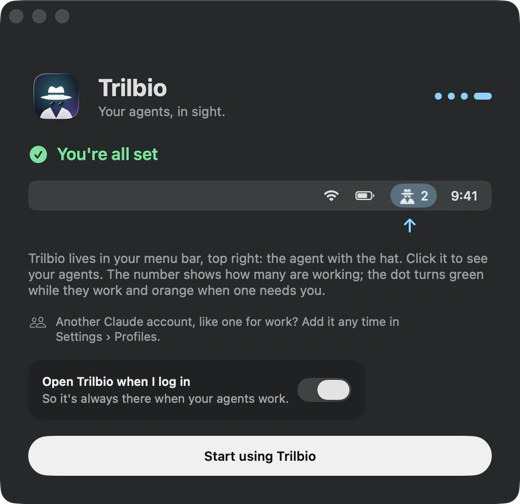
Trilbio shows you where its icon lives and asks whether it may open when you log in. Click the icon, or set a keyboard shortcut in Settings, to open the panel.
The panel
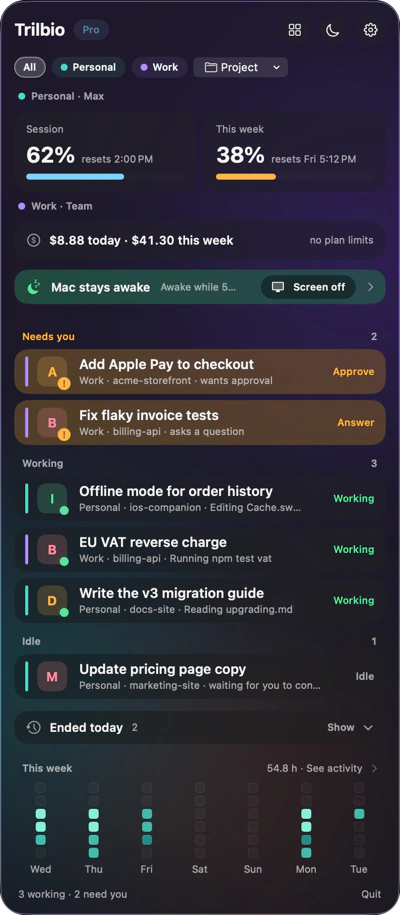
Click the menu bar icon to open the panel. From top to bottom:
- Header: buttons for Activity, Keep awake and Settings.
- Per profile: your plan with limit tiles, or a spend line.
- Keep-awake banner: whether your Mac is being kept awake, and why.
- Needs you (amber), Working (green) and Idle (grey ring) sessions, each with project, branch and duration.
- Collapsed lines for sessions idle for a long time and sessions that ended, which open in place.
- The week strip ("See activity").
The menu bar icon carries a dot: amber when something needs you, green while agents work, none when it's quiet, plus the number of active agents. Click a session for its detail page, with a button to show it in the terminal or continue it.
Answering prompts
When Claude asks for permission or asks a question, Trilbio shows a notification (for Allow / Deny) or its own card (for questions with options). In Settings you choose when Trilbio takes over prompts: always, when I'm not in that terminal (default) or never. If you don't answer in Trilbio, the normal prompt in the terminal still works. See needs-you alerts.
Limits
If you ticked limits while connecting, Trilbio wraps your status line: it reads the usage numbers Claude Code passes to it and then runs your own status line as before. Set the alert threshold in Settings. See usage limits.
Keep awake
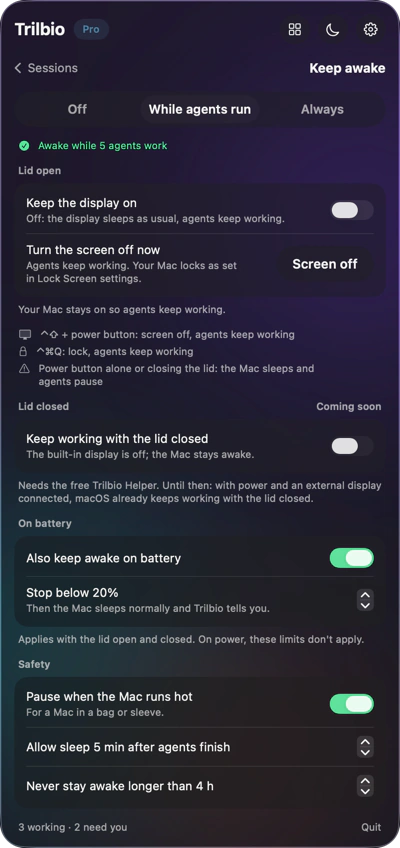
Open Keep awake from the panel header. Choose Off, While agents run or Always, then set the guards: on battery, heat, grace period and maximum duration. Screen off darkens the display while your agents keep working; your Mac locks as set in Lock Screen settings. If that doesn't work on your Mac, press Control Shift + power button, or lock with Control Command Q. See keep your Mac awake.
Activity
Open Activity from the panel header or the week strip. "This week" shows a day-by-hour heatmap; "Last 4 weeks" a block per day and time per project. See activity.
Several Claude profiles
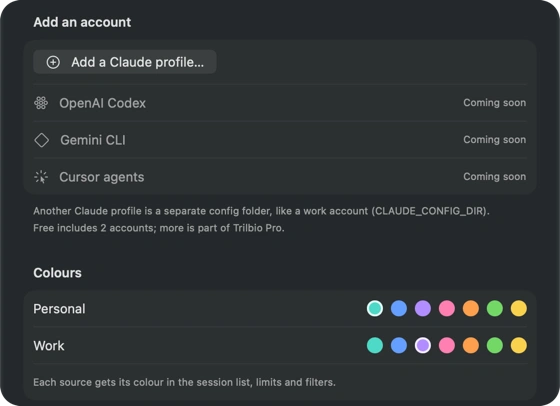
If you run Claude Code with more than one configuration folder (for example personal and work via CLAUDE_CONFIG_DIR), add each folder in Settings, Profiles. Every profile gets a colour that shows on its sessions, limits and activity, and you can filter by profile or project. Free includes two accounts; Pro has no limit. Cowork tasks from the Claude app can be shown read-only and don't count as an account.
Terminals
"Show in terminal" brings a running session forward; "Continue in terminal" runs claude --resume in the right folder and profile. Choose your terminal in Settings: Terminal, iTerm, Ghostty or Warp. You can always copy the resume command instead.
Disconnect
In Settings, Profiles, choose Disconnect. Trilbio removes its plugin from Claude Code's settings and restores your original status line. Deleting the app after that leaves nothing behind in your Claude setup.
Troubleshooting
A session doesn't show up
Sessions report to Trilbio from the moment they start after connecting. Sessions that were already running show up from their transcript, with less detail, until you restart them.
No needs-you alerts
Check that notifications for Trilbio are allowed in System Settings, Notifications, and that "take over prompts" isn't set to never. If you're in the terminal where the agent runs, Trilbio stays quiet on purpose.
Limits are empty
Limits appear after Claude Code's next status line update, so send a message in a session. Make sure limits were ticked when connecting, and that your Claude Code version is recent.
Still stuck? Email support@trilbio.com.

Let your agents work. Trilbio keeps watch.
Free to download, every Pro feature free for the first 7 days, then a one-time €12.99 if you want to keep them. Nothing is charged automatically.
Requires macOS 26 or later. Works with Claude Code today; Codex, Gemini CLI and Cursor are coming.